Uploading and managing content
Uploading
In the "Content" area you upload a file. It is processed automatically and turned into interactive web content; conversion consumes credits. When finished, you open the content, edit it and check it in the preview.
Check upload: Before every upload a dialog shows the file name, the file size and the estimated storage cost in credits per month. This is an estimate based purely on the file size — nothing is charged at that point; the upload only starts once you confirm. The maximum file size is 1 GB.
Supported formats
You import content from several source formats:
- PowerPoint (PPTX) — the main format; layout, fonts, colours, tables and many effects are preserved.
- PDF — the text of each page is extracted with its heading and paragraph structure; each page gets its own speaker-text row and can be read aloud directly via the narration wizard.
- SCORM — existing SCORM packages (including those from other authoring tools) are imported; contained quiz questions are carried over where possible.
- H5P — interactive content packages (e.g. Course Presentation) are read in, with quiz questions evaluated.
- Google Slides — via the PowerPoint export; see the following section.
How much is carried over depends on the source — always check imported content in the preview. Ongoing improvements to the active playback of imported interactions are in progress.
Importing from Google Slides
You bring Google Slides presentations into the portal via the PowerPoint export: in Google Slides choose "File → Download → Microsoft PowerPoint (.pptx)" and then upload the file like any other PPTX. You do not have to change anything in Google Slides and you do not need any additional software.
Your animations come along. The export is plain, ordinary PowerPoint format — Google Slides does not create any constructs of its own, and the effects are not lost during the download. The range of animations in Google Slides is modest: 15 animations and 7 slide transitions, whereas PowerPoint offers many times that number. Google Slides has no motion paths, no colour animations and no click-triggered effects.
An analysis of 332 real Google Slides exports containing 10,952 slides and 10,510 animations produced: not a single unknown effect and not a single warning. The portal therefore reads the Google catalogue in full.
What that means — and what it does not: the animations and transitions that are read in do run in the player and are displayed. We do not promise a pixel-identical match with playback in Google Slides or PowerPoint — we are currently measuring effect fidelity systematically. So check an imported course in the preview, just like any other.
Recommendation: for courses with text, images, tables and the usual fade and appear effects — that is, for typical Google Slides content — the route via the PPTX export is straightforward and needs no rework. If you need more elaborate sequences such as motion paths or click-triggered steps, build the presentation in PowerPoint in the first place: Google Slides cannot produce such effects at all.
Text recognition (OCR) for PDF
If a PDF contains scanned pages (text stored as an image), the portal recognises the text automatically via optical character recognition (OCR). This happens on every PDF import automatically — there is no prompt and no opt-in any more. Scanned documents thus become searchable, editable and narratable.
Content list
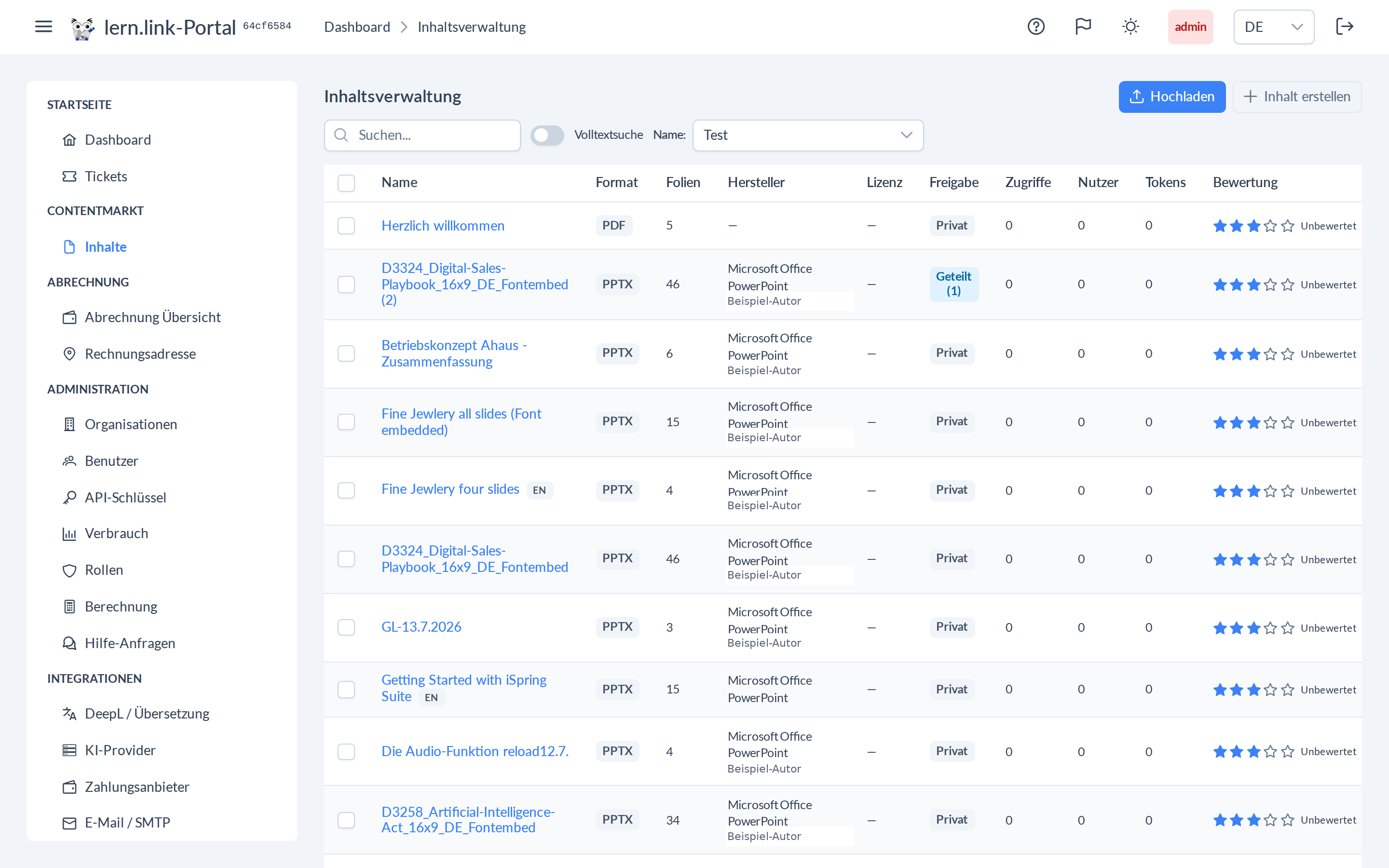
All of your organisation's content appears in the content list. The actions row of each entry provides the key actions: open and edit, share, download the original and delete. Which actions you see depends on your rights and the ownership of the content.
Sharing and review links
In the sharing dialog ("Share content") you control who sees a content item:
- Public / share with organisations — controls visibility inside the portal. Any setting can be reverted at any time (e.g. switch "public" back to "private").
- Review link for your customer — creates a link that opens the course without login and (if enabled) allows direct comments. You set the validity in days and switch comments on or off.
The "Existing links" list shows each review link with its status (active, expired, revoked); per link you can copy it, change the expiry date, revoke, reactivate or delete it. Administrators additionally find an overview of all issued links in Administration.
Downloading the original file
Administrators re-download the originally uploaded source file via the "Download original" icon in the actions row of the content list — for example for reprocessing or archiving.
Ownership and deletion
Content belongs to the organisation that uploaded it. Only users with sufficient rights may edit or delete it. The original file is kept encrypted and private in the EU; only what you or your administrator delete is removed.